
Last weekend I set up movie night for my kids, but the sound felt flat. If you want to pair bluetooth speakers for stereo sound, you don’t need to buy an expensive soundbar. You can easily turn a single mono source into a real left-right stereo setup in under ten minutes.
If your Bluetooth speaker sounds thin, boxed in, or stuck in one spot, pairing a second speaker fixes that without new hardware. This guide walks you through every method, the exact steps for popular brands, the mistakes that block pairing, and how to troubleshoot when a connection refuses to hold.
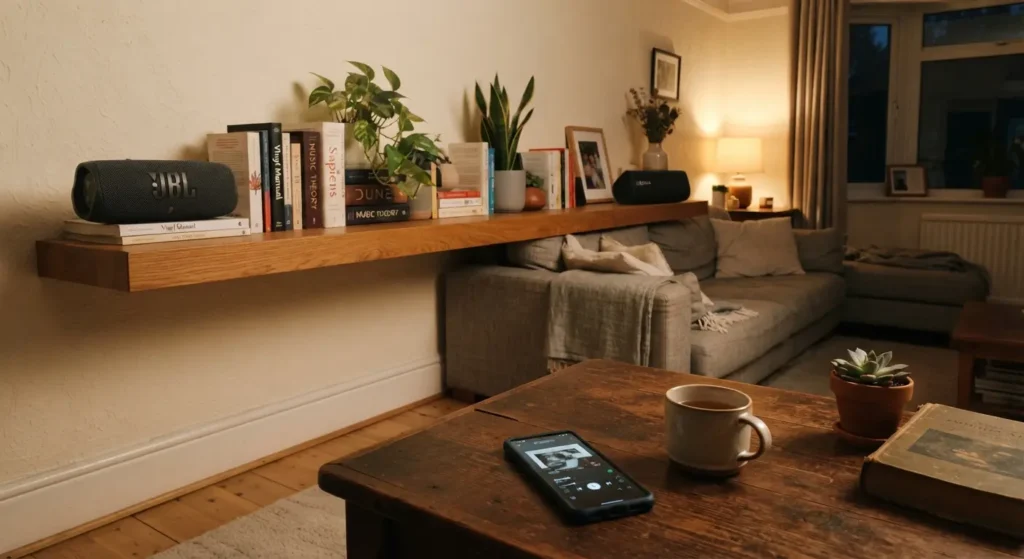
Why Pair Two Speakers Instead of Buying One Bigger Unit
A single Bluetooth speaker plays mono audio. Both channels of a song, the vocal and the instrument mix, come out of the same driver. Pair two speakers and one plays the left channel while the other plays the right channel, the same separation you get from a proper stereo system.
Three reasons people choose this route over a soundbar:
- You already own two speakers and spend nothing extra.
- Stereo separation makes music sound wider and more detailed, especially with acoustic or orchestral tracks.
- You place the speakers wherever the room needs sound instead of one fixed unit.
The tradeoff: most brands only support stereo pairing between two speakers of the same model. A JBL Flip 6 does not pair in true stereo with a JBL Charge 5, according to JBL’s own support documentation. Mixed-brand pairing is possible too, through a different method covered below.
What You Need Before You Start
- Two Bluetooth speakers, ideally the same brand and model for guaranteed stereo support.
- Both speakers charged above 20 percent. Low battery interrupts pairing mid-process.
- The speaker’s companion app installed on your phone, if the brand uses one (JBL Portable, Sony Music Center, Bose Connect, and similar).
- Your phone’s Bluetooth turned on and no other devices connected to either speaker.
Check your model number before you start. Brands publish compatibility lists, and pairing two different models often locks you into a mono “party mode” instead of real stereo.
Method 1: Same-Brand True Wireless Stereo Pairing
Most major brands, JBL, Sony, Bose, Ultimate Ears, build a stereo pairing mode directly into their speakers. The exact button sequence changes by brand, but the logic stays the same: connect one speaker to your phone first, then link the second speaker to the first.
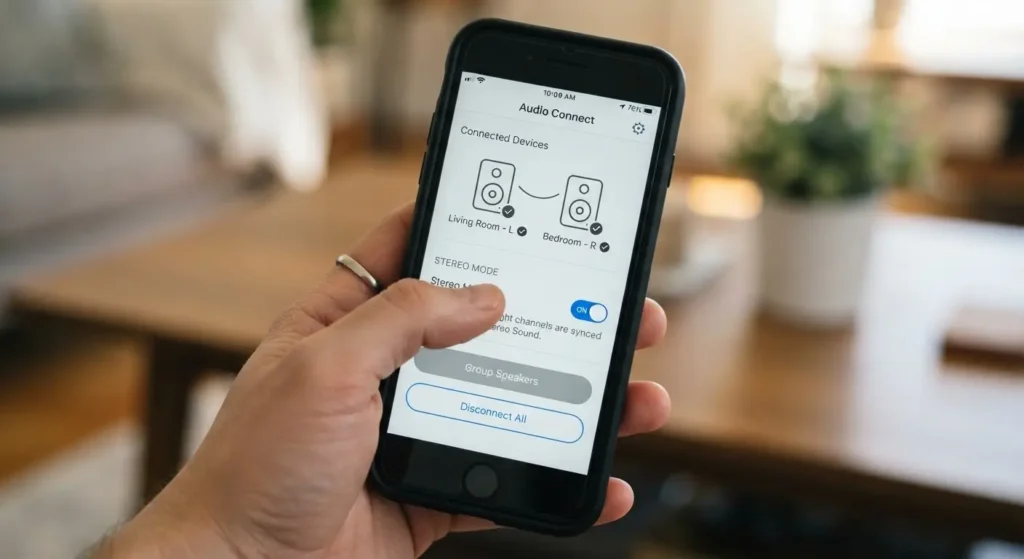
Step-by-Step: JBL Speakers (PartyBoost)
- Turn on the first speaker and connect it to your phone through Bluetooth settings.
- Play music for at least 20 seconds before continuing. This step confirms the connection before adding a second speaker.
- Open the JBL Portable app on your phone.
- Turn on the second speaker and let the app detect both units.
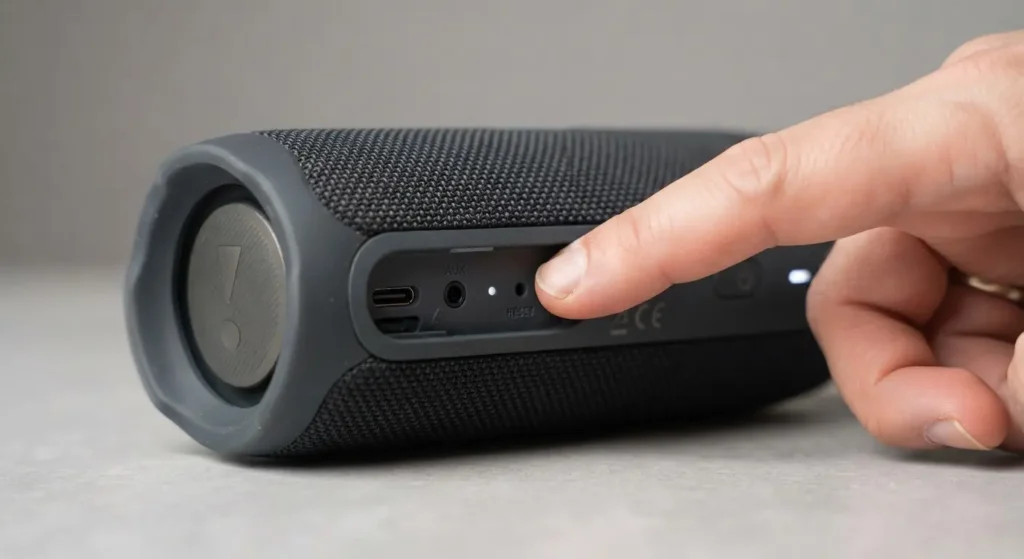
- Press the Connect or PartyBoost button on both speakers.
- In the app, choose Stereo mode when prompted, not Party mode.
JBL’s own support page confirms stereo mode only activates when both speakers share the exact same model. Mixing a Flip 5 with a Flip 6, for example, forces Party mode instead (JBL support).
Step-by-Step: Sony Speakers (Stereo Pair)
- Power on both speakers and clear any existing Bluetooth connections.
- Open the Sony Music Center app.
- Select “Speaker & Group,” then choose to create a new group.
- Pick Stereo Pair from the group options.
- Assign one speaker as the left channel and one as the right.
- Connect your phone to the paired group through Bluetooth as normal.
Sony’s help documentation notes that Stereo Pair automatically switches the audio codec to SBC, and the setup step requires the app even though everyday listening after that does not (Sony support).
Step-by-Step: Bose, Ultimate Ears, and Other Brands
The pattern repeats across brands:
- Connect speaker one to your phone.
- Open the brand’s companion app.
- Turn on speaker two and let the app find it.
- Select stereo or “party pair” mode, then pick stereo specifically.
- Assign left and right channels if the app asks.
Method 2: Pairing Speakers From Different Brands
No brand-standard stereo pairing works across manufacturers. A JBL speaker never links in true stereo with a Sony speaker through Bluetooth alone. Three workarounds exist for mixed-brand setups:
Use two separate audio sources. Connect one speaker to a phone and a second speaker to a tablet or laptop, then pan a stereo track hard left on one device and hard right on the other using an equalizer app. This works but takes manual setup for every listening session.
Use a Bluetooth transmitter with dual-link support. Devices such as a dual-output Bluetooth transmitter plug into a headphone jack or USB port and broadcast to two speakers independently, letting you assign left and right channels through the transmitter’s app.
Run an aux cable from one speaker to the other. Some speakers include an aux-in port. Play audio into speaker one over Bluetooth, then run a 3.5mm cable from its aux-out (if it has one) or headphone-style output to speaker two. This gives you two-speaker volume but not true stereo separation, since both play the same combined signal.
For guaranteed stereo separation, same-brand pairing stays the more reliable choice. SoundGuys documented this limitation directly when testing cross-model JBL pairing, confirming that different families of speakers stick to mono grouping instead of stereo (SoundGuys).
A Real Setup: My Living Room Test
I ran this exact setup with two JBL Flip 6 units on a Saturday afternoon. Pairing took roughly four minutes, most of it spent waiting for the app to detect the second speaker. I placed one speaker on a bookshelf to the left of the TV and the second on a side table to the right, about nine feet apart.
The difference showed up immediately on a concert recording. Crowd noise spread across the room instead of sitting in one spot, and the lead vocal centered between the two speakers instead of blasting from a single point. Battery drain matched normal single-speaker use, roughly six hours of continuous playback per charge on each unit.
One issue came up the following week. I walked near a third PartyBoost speaker that happened to power on nearby, and my stereo pair broke automatically, reverting to a three-speaker mono group. JBL documents this exact behavior, and the fix is closing the Portable app fully before approaching other PartyBoost speakers that are switched on.
Common Problems and How to Fix Them
The second speaker never shows up in the app. Turn Bluetooth off and back on on your phone, then restart both speakers. Apps struggle to detect a speaker if it already holds a connection to another device.
Sound comes from only one speaker. Check the app’s channel assignment screen. Some brands default both speakers to the same channel until you manually set one to left and one to right.
The stereo pair keeps disconnecting. Move the speakers closer together during setup, then space them apart once the pair locks in. Bluetooth range during pairing runs shorter than range during playback.
A third speaker keeps joining the group. Turn off any other Bluetooth speakers nearby before you start, and close the companion app fully once your stereo pair works, since some apps keep scanning for compatible speakers in the background.
Audio lags behind video. This shows up mostly during Party Connect or multi-speaker modes rather than true stereo pairs. Switch to the dedicated stereo mode instead of a group or party mode, since group modes add extra processing delay.
Safety Tips for Bluetooth Speaker Pairing
- Update speaker firmware through the companion app before pairing. Outdated firmware causes most stereo-pairing failures.
- Charge both speakers fully before extended outdoor use, since stereo pairing draws slightly more power than single-speaker playback for some models.
- Keep speakers away from direct water exposure even on waterproof models, since ports and buttons used during pairing wear down faster with repeated moisture contact.
- Reset a speaker to factory settings only through the official method in your manual. Forcing a reset through unofficial button combinations voids warranty coverage on some brands.
- Avoid third-party pairing apps that request more device permissions than a speaker’s official app. Stick with the manufacturer’s own software.
FAQ
Do the two speakers need to be the same brand? For true stereo separation, yes. Brands lock stereo pairing to their own ecosystem. Mixed-brand setups work through a transmitter or dual-source method instead, covered in Method 2 above.
Do the two speakers need to be the exact same model? Most brands require it. JBL, for example, only unlocks Stereo mode between two identical models. Different models from the same brand default to a mono party mode.
Does pairing two speakers double the volume? Volume increases since two drivers push sound instead of one, but the main benefit is stereo separation, left and right channels playing distinct audio, rather than raw loudness.
Does pairing drain the battery faster? Each speaker’s battery drains at close to its normal single-speaker rate. Total listening time per charge stays roughly the same as using one speaker alone.
Does the stereo pair remember my settings after I turn the speakers off? Most brands keep the pairing saved. Turn both speakers back on and they reconnect automatically without repeating the full setup, though some models ask you to reopen the app once to confirm the link.
Can I use one speaker as the main unit and stream video with low delay? True stereo mode keeps delay low enough for most video. Party or group modes with three or more speakers add noticeable lag, so stick with two-speaker stereo mode for watching movies or shows.
Pairing two speakers costs nothing beyond ten minutes of setup, and the stereo separation changes how music and movies feel in a room. Start with two matching speakers if you own them, and fall back to a transmitter setup if your speakers come from different brands.
Need a second matching speaker for stereo setup? Check our latest Bluetooth Speakers Collection.
Peculiar article, just what I needed.