
Understanding why ultra-low latency matters for gaming headsets can completely change your gaming experience. You line up a shot, pull the trigger, and if you wait even a beat before the gunshot sound hits your ears, the kill cam already shows you dead. That gap between the visual event and the sound is latency, and if your headset runs slow, no amount of skill fixes the timing.
Most buying guides talk about drivers, bass response, and mic quality. Few explain the number that decides whether you hear footsteps in time to react: latency, measured in milliseconds. This guide breaks down what that number means, why it changes your results in fast games, and the exact steps to measure it yourself before you trust a spec sheet again.
A gamer wearing a headset reacting quickly during a first-person shooter match, screen glow on their face, focused expression](Image prompt: “A close-up photo of a young gamer wearing a black gaming headset, lit by blue and purple monitor glow, intense focused expression, mid-reaction during an FPS match, realistic photography style, shallow depth of field”)
Why Ultra-Low Latency Matters for Gaming Headsets: What It Means
Latency is the delay between the moment a sound event happens inside your game and the moment that sound reaches your ears. It has nothing to do with sound quality. A headset can produce rich, detailed audio and still lag behind the action on screen.
Three stages add up to your total delay:
- Signal processing on your PC or console, where the game engine generates the sound
- Transmission from your device to the headset, over a cable, a 2.4 GHz dongle, or Bluetooth
- Decoding inside the headset, where the audio chip converts the signal into sound waves
Each stage adds a few milliseconds. Wired headsets skip most of the transmission delay. Wireless headsets depend heavily on the radio technology and codec they use, and that choice swings your total latency from under 20 milliseconds to well past 150.
Why Milliseconds Decide Matches
Human reaction time to sound sits around 150 to 200 milliseconds on average. That sounds slow next to the tiny latency numbers headset makers advertise, so a natural question follows: does 30 or 50 milliseconds of headset delay even register?
It does, because headset latency stacks on top of your own reaction time rather than replacing it. In a competitive shooter, a 100 millisecond audio delay means you hear a flanking enemy a tenth of a second after your opponent with a low-latency setup hears the same footstep. In a 1v1 gunfight, that gap decides who shoots first.
Rhythm games and fighting games expose the problem even faster. A beat that lands 80 milliseconds late throws off your timing on every note. A parry input based on a delayed sound cue misses the window entirely.
A Real Scenario Worth Knowing
A common pattern shows up in online forums and Reddit threads from competitive players: someone switches from a wired headset to a standard Bluetooth pair for convenience, then notices they die more often to players approaching from behind, despite unchanged aim and awareness. The audio cue for footsteps still plays, just late enough to erase the warning. Switching back to a wired connection or a 2.4 GHz wireless dongle usually fixes the pattern within a session, because those connections cut the delay that Bluetooth adds.
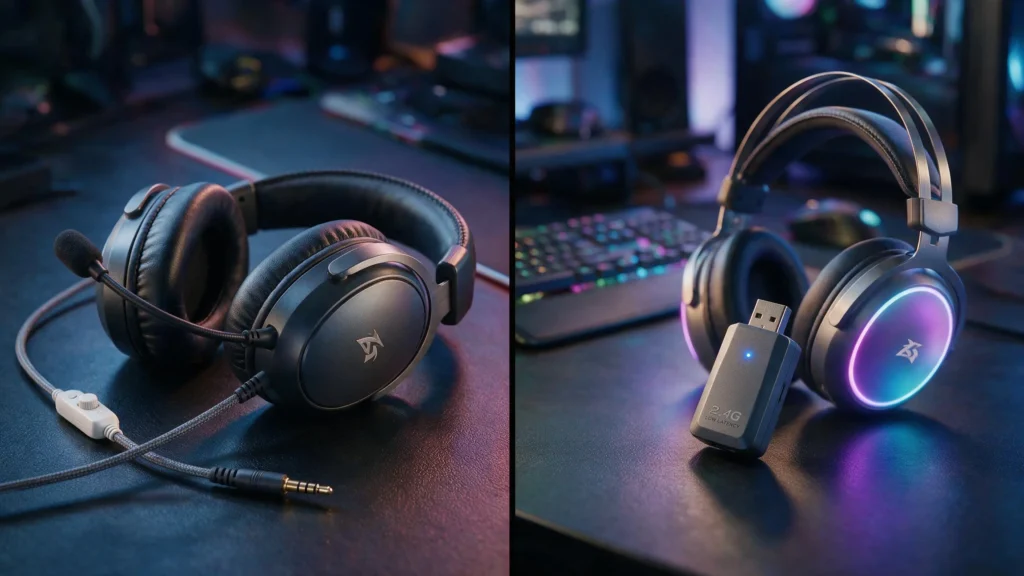
Wired vs 2.4GHz vs Bluetooth: Latency Compared
Not every connection type delivers the same delay. Here is what typical setups measure at, based on codec and radio technology:
| Connection Type | Typical Latency | Good for Competitive Gaming |
| Wired (3.5mm or USB) | Under 20 ms | Yes |
| 2.4 GHz USB dongle | 20 to 40 ms | Yes |
| Bluetooth LE Audio (LC3 codec) | 20 to 30 ms | Yes, on supported devices |
| Bluetooth with aptX Low Latency | 30 to 40 ms (codec level), often 70 to 100 ms end to end | Acceptable for casual play |
| Bluetooth Classic with AAC | 150 to 200 ms | No |
| Bluetooth Classic with SBC (default) | 100 to 150 ms | No |
Wired headsets stay the safest choice for ranked play and esports, since a cable removes the radio link entirely. Among wireless options, a dedicated 2.4 GHz dongle beats standard Bluetooth because it skips the handshake and buffering that Bluetooth Classic needs. LE Audio with the LC3 codec closes much of that gap, but only on devices where both the headset and the source support it, and current console support for LE Audio remains limited.
Standard Bluetooth headphones paired straight to a phone or laptop without a low-latency codec regularly land above 150 milliseconds. That number works for music and podcasts. It does not work for a shooter.
How to Test Your Headset’s Latency Step by Step
Spec sheets list codec-level latency, not what you experience with your exact setup, room, and device. Test it yourself with one of these three methods.
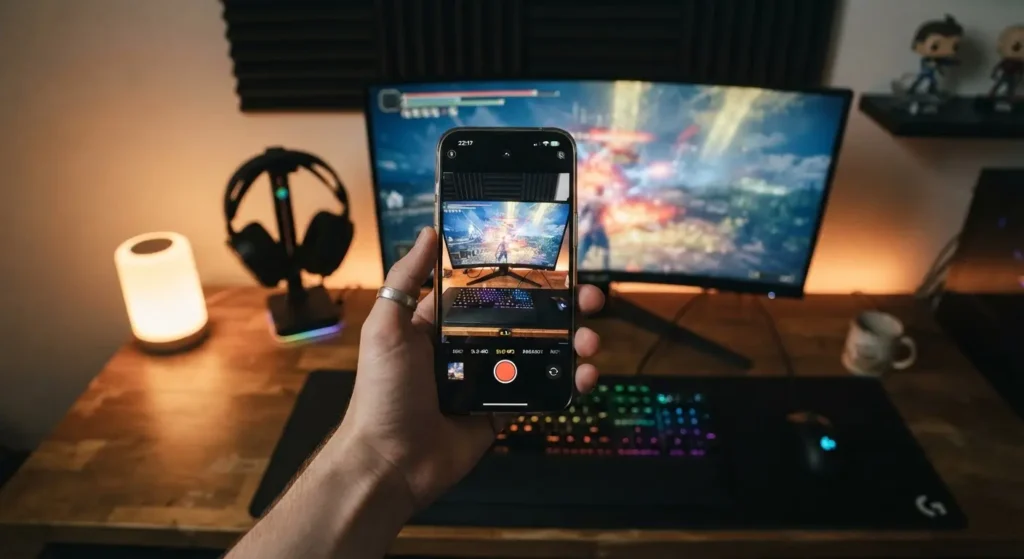
Method 1: The Slow-Motion Video Test
This method needs nothing beyond a smartphone.
- Set your phone camera to slow-motion mode, ideally 120fps or 240fps.
- Position your phone so the frame captures your screen and shows a visual cue you can time, such as a muzzle flash or a drum hit in a rhythm test video.
- Put on your headset and record yourself reacting, or record a friend snapping their fingers near an open mic while wearing the headset.
- Play the sound through your game or a dedicated latency test clip on YouTube.
- Play back the recording frame by frame and count the frames between the visual event and the audio peak.
- Multiply the frame count by the time per frame. At 120fps, each frame equals about 8.3 milliseconds. At 240fps, each frame equals about 4.2 milliseconds.
This method gives you a rough but honest number without extra software.
Method 2: An Online Click-Based Latency Test
Several free browser tools measure audio delay by playing a test tone and timing your response, or by comparing two devices side by side.
- Open a browser-based audio latency test tool.
- Connect your headset the same way you play, wired, dongle, or Bluetooth.
- Run the test and read the millisecond result the tool reports.
- Repeat the test with your normal headset settings, then again with Game Mode or a low-latency codec enabled, so you can compare the difference directly.
Tools such as Online Audio Test’s latency checker and its dedicated Bluetooth latency test walk through this process without needing an account or download.
Method 3: Loopback and Software Measurement
For a lab-grade result, route your headset’s audio output back into an input using a loopback cable or your audio interface’s built-in loopback mode, then play a known test tone and measure the round trip in recording software. This method removes human reaction time from the equation entirely and gives you the most repeatable number, though it needs an audio interface most casual players do not own.
What Counts as a Good Result
Once you have a number, compare it against these general benchmarks:
- Under 20 ms: excellent, matches a wired connection
- 20 to 50 ms: very good, suitable for competitive play
- 50 to 100 ms: acceptable for casual gaming and most single-player titles
- 100 to 150 ms: noticeable in fast-paced games, footsteps and gunfire feel delayed
- Over 150 ms: a clear disadvantage in any game where timing matters
If your test lands above 100 milliseconds on a headset marketed for gaming, check the codec first before assuming the hardware is at fault.
How to Lower Your Headset’s Latency
- Switch to the included 2.4 GHz USB dongle instead of Bluetooth, if your headset ships with one
- Enable Game Mode in the headset’s companion app, which usually forces a low-latency codec
- Update the headset firmware and your device’s Bluetooth drivers, since older firmware often defaults to SBC
- Confirm both your headset and your source device support the same low-latency codec, since a mismatch falls back to the slowest shared option
- Turn off Bluetooth coexistence features on Windows that let the adapter sleep or share bandwidth with other devices
- Move closer to your source device and remove obstacles between them, since interference adds jitter on top of base latency
- Use a wired connection for ranked or tournament play, and save wireless for casual sessions where a few extra milliseconds cost nothing
None of these steps involve firmware hacks or unsupported modifications. Stick to settings your headset and operating system expose through their official menus.
“Looking to upgrade your gaming setup with minimal audio delay? Check out our latest “Crystal Clear Transparent HIFI Waterproof Earbuds “on Elixgear for ultra-low latency performance and crystal-clear sound.”
FAQ
Does audio latency matter in single-player games? Less than in competitive multiplayer, but a delay above 100 milliseconds still throws off rhythm sections, quick-time events, and any moment where sound cues timing matters.
Is a wired headset always faster than a wireless one? In almost every case, yes. A cable removes the radio transmission step entirely, so wired latency depends only on the audio chip and driver, which usually stays under 20 milliseconds.
Can I trust the latency number a manufacturer lists on the box? Treat it as a starting point rather than a guarantee. Manufacturer numbers often measure codec-level latency under ideal conditions, not the full round trip you experience with your own device and room.
Does Bluetooth LE Audio fix the gaming latency problem? LE Audio with the LC3 codec cuts latency close to wired levels on supported devices, but you need both a headset and a source device that support LE Audio, and current game console support remains limited as of 2026.
What is a safe latency target for competitive shooters? Aim for under 40 milliseconds total. Professional and semi-professional players generally stay wired or use a 2.4 GHz dongle to stay well under that mark.
Buy a gaming headset for the latency number as much as the driver size or the microphone quality. A headset that sounds rich but arrives late puts you a step behind on every match, and the fix costs nothing more than fifteen minutes with your phone’s slow-motion camera.
Recommended External Reading