
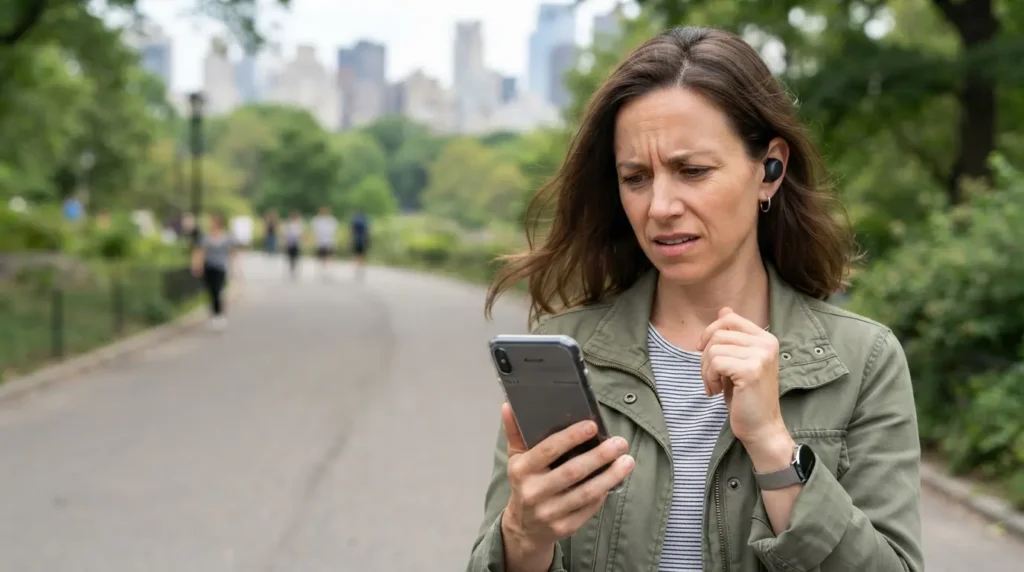
Dealing with Bluetooth earbuds that keep disconnecting can be extremely frustrating. You press play, the song stops after ten seconds, you check your phone and it shows still connected, yet the audio cuts again. If this sounds familiar, your earbuds are not necessarily broken—something in the connection chain is fighting them.
This guide walks through the real causes of Bluetooth disconnections and the fixes that solve them. No guesswork, no reinstalling your whole phone. Just the steps that work, in the order that makes sense to try them.
Why Do Bluetooth Earbuds That Keep Disconnecting Fail?
Bluetooth runs on the 2.4 GHz frequency band. So does most home Wi-Fi, plus microwaves, baby monitors, cordless phones, and other Bluetooth gadgets nearby. When too many signals compete on that band, packets drop, and your audio stutters or cuts out completely. The Bluetooth SIG’s own technical overview confirms this shared-band design, and independent lab research from the National Institute of Standards and Technology measured exactly how much packet loss this crowding causes.
Beyond interference, five other culprits cause most disconnections:
- Low battery in the earbuds. Bluetooth chips cut power to the radio first when battery runs low, which weakens the signal before the earbuds die completely.
- Outdated firmware or drivers. Manufacturers release updates specifically to fix connection bugs. Skipping them keeps old bugs alive.
- Too many paired devices. Your earbuds hold a memory of past pairings. A crowded list confuses the handshake process.
- Physical obstacles. Walls, your own body, and even a phone in your back pocket weaken the signal path between phone and earbuds.
- A corrupted pairing profile. Sometimes the connection data saved on your phone gets damaged, and the earbuds need a full re-pair to work again.
Quick Fixes You Can Try Right Now
Start here. These steps fix most disconnection problems in under five minutes, no tools needed.
1. Move Closer and Remove Obstacles
Bluetooth has a working range of about 10 meters (33 feet), but walls, metal objects, and your own body cut that range fast. Keep your phone within a few feet of your earbuds, especially in the first minute after connecting. If your phone sits in a back pocket while you walk, switch it to a front pocket or bag strap facing your ears.
2. Charge the Earbuds Fully
Plug both earbuds into their case and let them charge for at least 30 minutes before testing again. A weak battery signal looks exactly like an interference problem, so ruling this out first saves time.
“Tired of dealing with signal drops and battery degradation? Upgrade to our” Crystal Clear Transparent HIFI Waterproof Earbuds “on Elixgear for enhanced Bluetooth stability, longer playback, and reliable everyday connectivity.”
3. Turn Bluetooth Off and On Again
This resets the radio connection without wiping any saved data.
- On iPhone: Settings > Bluetooth > toggle off, wait 10 seconds, toggle on.
- On Android: Swipe down, hold the Bluetooth icon, toggle off, wait 10 seconds, toggle on.
4. Forget the Device and Re-Pair
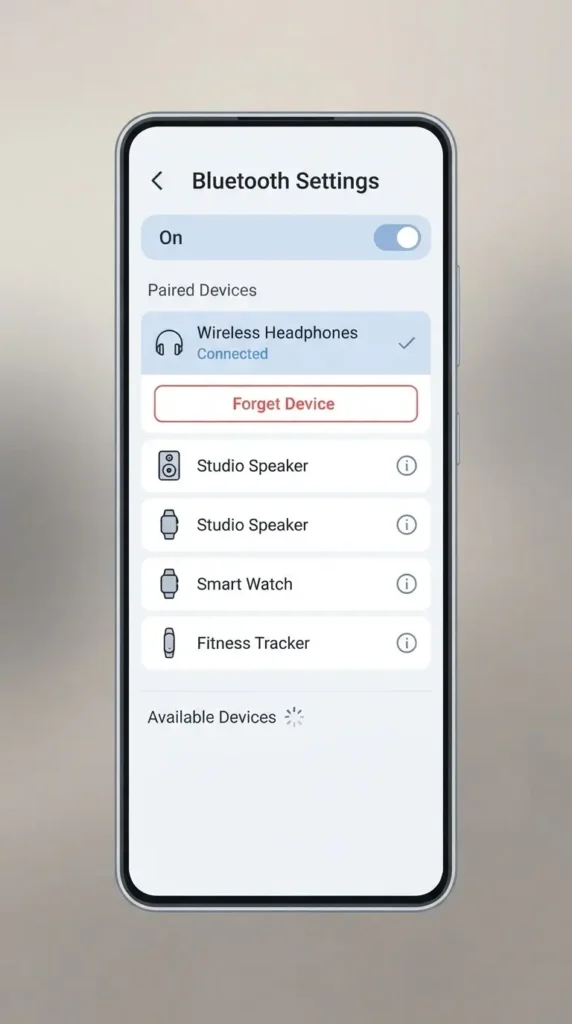
If the toggle trick does not hold, remove the saved pairing entirely and start fresh.
- iPhone: Settings > Bluetooth > tap the info icon next to your earbuds > Forget This Device. Then put the earbuds back in pairing mode and reconnect. Apple documents the full process on its official Bluetooth pairing support page.
- Android: Settings > Connected devices > tap the gear icon next to your earbuds > Forget. Then re-pair from scratch, following Google’s Bluetooth pairing instructions.
5. Clear Old Pairings From Your Earbuds’ Memory
Most true wireless earbuds hold a limited number of saved device pairings, often eight or fewer. If you have connected them to a laptop, tablet, and two phones over the years, the memory fills up and confuses new handshakes. Check your earbuds’ manual for a factory reset combination (usually holding the button on the case for 10 to 15 seconds), then re-pair only the devices you actually use.
Real-World Scenario: The Gym Dropout Problem
A reader named Karim wrote in with a pattern many gym-goers know well. His earbuds worked fine at his desk but dropped audio constantly the moment he started his treadmill session. He assumed the earbuds were defective and almost returned them.
The actual cause: his phone sat in an armband on his left arm, while he ran with his head turned toward a TV mounted on the wall, putting his own skull between the phone and one earbud. Bluetooth signals struggle to pass through the human body, especially at 2.4 GHz. Switching the armband to his right arm, matching the side his phone-facing ear used, solved the dropouts within one session. No firmware update, no new earbuds, just a signal path fix.
This is common. Before assuming hardware failure, check where your phone sits relative to your body during the activity that triggers the disconnects.
Advanced Fixes When Quick Fixes Don’t Work
If the basics above did not solve the problem, work through these next.
Update Firmware on Both the Earbuds and Your Phone
Most earbud brands push firmware updates through their companion app (check your app store for the brand name plus “app”). Open the app, look for a firmware or software update section, and install anything available. On your phone, go to Settings > Software Update (iPhone) or Settings > System > System Update (Android) and install any pending updates. Bluetooth stack bugs get patched in these updates more often than people expect.
Reduce Competing Wi-Fi Interference
If your router sits within a few feet of where you use your earbuds, switch your Wi-Fi to the 5 GHz band if your router supports dual bands. This moves your home network off the 2.4 GHz band Bluetooth shares, cutting one major source of packet collision.
Disconnect Other Bluetooth Devices
Smartwatches, wireless keyboards, fitness trackers, and Bluetooth speakers all compete for the same limited bandwidth when active near your phone. Turn off Bluetooth on devices you are not actively using during a call or listening session.
Reset Network Settings (Last Resort)
If nothing above works, a full network settings reset clears every saved Bluetooth pairing, Wi-Fi password, and VPN configuration on your phone.
- iPhone: Settings > General > Transfer or Reset iPhone > Reset > Reset Network Settings.
- Android: Settings > System > Reset options > Reset Wi-Fi, mobile & Bluetooth.
Write down your Wi-Fi passwords first. This step fixes stubborn cases where a corrupted system-level Bluetooth profile survives normal re-pairing.

How to Prevent Future Disconnections
- Charge your earbuds fully before long sessions instead of running them near empty.
- Keep your phone’s Bluetooth device list trimmed to devices you use weekly.
- Update firmware every time your companion app flags a new version.
- Keep your phone on the same side of your body as the earbud you rely on most for calls.
- Avoid using earbuds near microwaves, baby monitors, or crowded Wi-Fi routers when the connection matters most.
Following these habits keeps most connection issues from coming back.
FAQ
Why do my Bluetooth earbuds disconnect only in one ear? A single-ear dropout usually points to a weak signal path on that side, often caused by your phone sitting on the opposite side of your body, or a battery that drains faster in one earbud due to age or manufacturing variance.
Do cheap Bluetooth earbuds disconnect more than expensive ones? Higher-end earbuds tend to use newer Bluetooth chipsets with better range and interference handling, but budget earbuds with updated firmware still perform well in most everyday situations. Chipset generation matters more than price alone.
Can a phone case cause Bluetooth interference? Thick cases with metal components or magnetic mounts weaken Bluetooth signal strength slightly. Silicone and plastic cases have no meaningful effect.
Should I turn off Wi-Fi to fix Bluetooth disconnections? No. Switching your router to 5 GHz solves the interference problem without losing your internet connection. Turning Wi-Fi off entirely is not necessary.
How do I know if the problem is my earbuds or my phone? Pair the same earbuds with a different phone or tablet. If the disconnects stop, the problem sits with your original phone’s Bluetooth settings or hardware. If the disconnects continue, the earbuds need a reset, firmware update, or repair.
Is it normal for new earbuds to disconnect during the first few days? Some brief instability during the first several pairings is common while the earbuds and phone build a stable connection profile. Disconnections that continue past the first week point to one of the causes covered above.