
Learning how to pair Bluetooth earbuds with any device shouldn’t be a frustrating experience. You just unboxed a new pair of Bluetooth earbuds, you charge them, press the button, and nothing happens. Your phone does not see them, or your laptop shows a different name than the box. Sound familiar?
This happens to almost everyone at least once. Bluetooth pairing looks simple on the package, but every device brand handles the process a little differently, and one wrong step (forgetting to unpair from an old phone, for example) sends people down a frustrating troubleshooting loop.
This guide walks you through pairing your earbuds with a phone, a laptop, a TV, and a gaming console, using safe, official steps only. No hacks, no third-party pairing apps, no risky Bluetooth “fix” tools. Just the process that actually works.
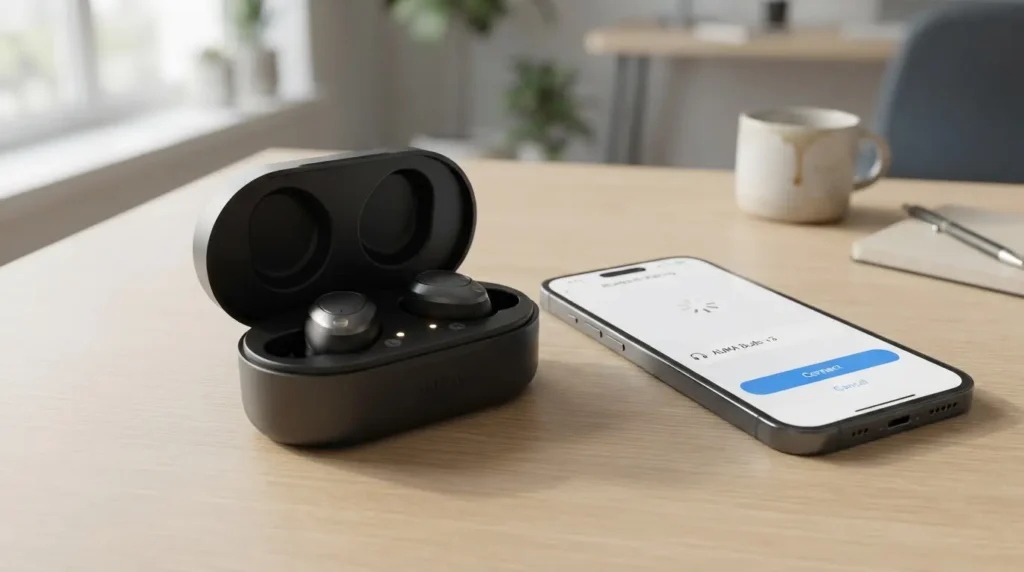
Why Bluetooth Pairing Fails More Often Than It Should
Bluetooth earbuds connect through a short-range radio signal. The earbuds broadcast a signal announcing they are available, and your device searches for that signal and links to it. Pairing problems usually come from one of three sources:
- The earbuds are still linked to a different device (a laptop, an old phone, a tablet)
- Bluetooth on your device is off, outdated, or holding a corrupted cache of old connections
- The earbuds never entered pairing mode in the first place
Once you understand this, troubleshooting gets a lot less confusing. Most “broken” earbuds are not broken. They are just talking to the wrong device, or not talking at all.
How to Pair Bluetooth Earbuds With Any Device: Quick Checklist Before You Start
- Charge the earbuds for at least 15 minutes if this is their first use
- Keep the earbuds within 3 feet of your device during pairing
- Turn Bluetooth on and off again on your device if it has paired with other gadgets recently
- Remove old pairings for the same earbuds name before repairing
How to Pair Bluetooth Earbuds With an iPhone
- Open the charging case with the earbuds inside.
- Go to Settings, then Bluetooth, and turn Bluetooth on.
- Hold the open case near your iPhone. For AirPods, a setup animation pops up on screen within a few seconds.
- Tap Connect, then Done.
- For non-Apple earbuds, put them in pairing mode (usually a long press on the case button until the light flashes), then select the earbuds name from the Bluetooth device list on your iPhone.
Apple documents this process step by step on its own support page, including model-specific pairing gestures for AirPods, AirPods Pro, and AirPods Max (Apple Support: Pair AirPods with an Apple device).
Real scenario: a reader bought AirPods Pro as a gift, opened the case near the recipient’s iPhone, and the pairing animation never appeared. The fix was simple: the case had already paired with the gift-giver’s own iPhone during testing. Once removed from that iPhone’s Bluetooth list under Settings > Bluetooth, tapping the “i” icon next to the AirPods name and choosing Forget This Device, the case paired instantly with the new iPhone.
Need a reliable pair with seamless Bluetooth pairing? Check out our top-rated Max Bass True Wireless Pocket Earbuds designed for quick connection.”
How to Pair Bluetooth Earbuds With an Android Phone (Samsung, Pixel, and Others)
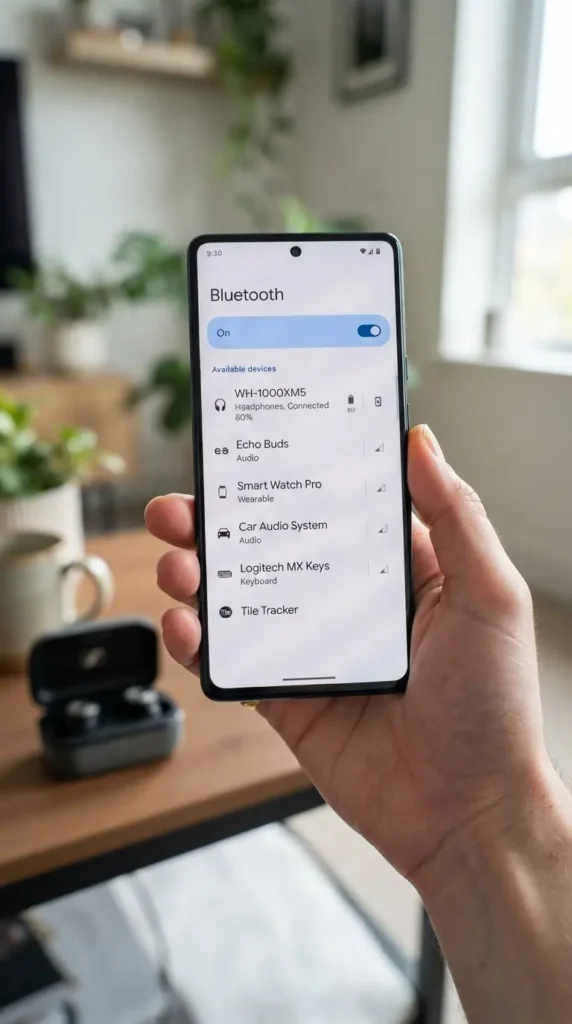
- Open Settings, then Connections (or Connected devices on Pixel), then Bluetooth.
- Turn Bluetooth on.
- Put the earbuds in pairing mode. Most models need a long press on the case button until the LED flashes white or blue.
- Tap the earbuds name once it appears under Available Devices.
- Confirm the pairing prompt if one appears.
Samsung Galaxy Buds skip most of this. Opening the case near a Samsung phone triggers a QuickPair pop-up automatically, and tapping Connect finishes the job in seconds, as Samsung explains in its own support documentation (Samsung Support: Pair Galaxy Buds using Bluetooth).
For non-Samsung earbuds on a Galaxy phone, or Samsung Galaxy Buds on a Pixel, standard manual pairing through the Bluetooth menu works the same way.
How to Pair Bluetooth Earbuds With a Windows Laptop
- Click the Start menu, then Settings, then Bluetooth & devices.
- Turn Bluetooth on.
- Click Add device, then choose Bluetooth.
- Put your earbuds in pairing mode.
- Select the earbuds name from the list and wait for the “Connected” status.
Many modern earbuds support Windows Swift Pair. When this feature is active, a small notification pops up in the corner of your screen the moment your earbuds enter pairing mode near your laptop, skipping the settings menu entirely.
How to Pair Bluetooth Earbuds With a Mac
- Click the Apple menu, then System Settings.
- Select Bluetooth and turn it on.
- Put your earbuds in pairing mode.
- Click Connect next to the earbuds name once it appears.
macOS keeps a running list of every device you pair, even after disconnecting, so switching between your earbuds and a speaker later takes one click instead of a full pairing cycle.
How to Pair Bluetooth Earbuds With a Smart TV
- Go to Settings, then Sound, then Sound Output.
- Select Bluetooth Speaker List or Bluetooth Audio, depending on your TV brand.
- Put your earbuds in pairing mode.
- Select the earbuds name when it appears in the scan results.
TVs from Samsung, LG, Sony, and TCL support this natively, though the exact settings path differs by brand and model year, so check your TV manual if the menu names above do not match your screen.
One common complaint after TV pairing: audio arrives slightly behind the video. This is normal Bluetooth latency, not a defect. Look for an “Audio Sync,” “Lip Sync,” or “Audio Delay” setting in your TV sound menu and nudge it until speech matches lip movement.
How to Pair Bluetooth Earbuds With a Gaming Console
Console support for Bluetooth audio varies a lot, so check this first:
- PlayStation 5 and Nintendo Switch support Bluetooth audio through their own settings menus, though some models need a firmware update first.
- Xbox consoles do not support standard Bluetooth audio for earbuds. A USB Bluetooth adapter or the console’s own wireless headset system is needed instead.
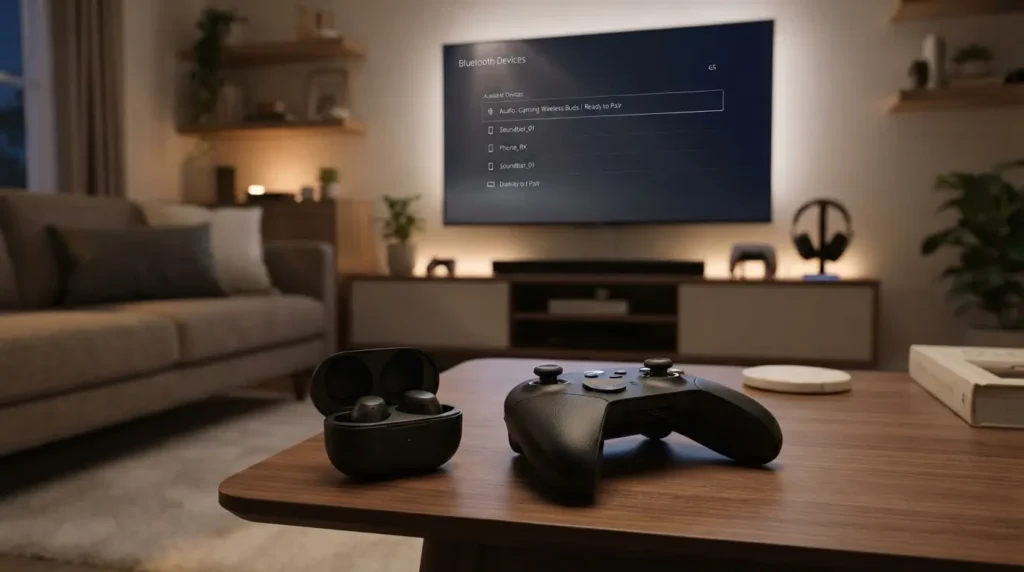
For consoles that support it, the steps mirror a phone: open Settings, find Devices or Bluetooth Accessories, put your earbuds in pairing mode, and select the name from the list.
Fixing the Most Common Pairing Problems
Earbuds Do Not Show Up in the Bluetooth List
Reset the earbuds to factory settings (check your manual for the exact button combination, often a long press of 10 to 15 seconds on both earbuds together), then restart pairing mode.
Earbuds Connect but Only One Side Works
Put both earbuds back in the case, close the lid for 10 seconds, then reopen it. This resyncs the left and right units before you pair again.
Earbuds Keep Disconnecting
Check whether the earbuds support multipoint. If they do, they may still be linked to a laptop or tablet nearby. Disconnect them from that device first, then reconnect on the one you want to use.
Old Pairing Entry Will Not Go Away
On your phone, tap the settings icon next to the old earbuds entry and choose Forget or Unpair, then repeat the pairing steps from the beginning.
A Real Reader Story
A reader wrote in after buying budget earbuds that paired fine with a laptop but refused to show up on a new Android phone. The cause turned out to be simple: the earbuds had automatically reconnected to the laptop the moment they came out of the case, since laptops with Bluetooth 5.0 or higher often win the reconnection race over phones. Turning Bluetooth off on the laptop for 30 seconds broke that habit and let the phone pair cleanly. Small detail, entire afternoon saved.
Safety Notes Worth Knowing
- Only pair earbuds using your device’s built-in Bluetooth settings. Skip third-party “Bluetooth fixer” apps that ask for extra permissions; they add risk without adding function.
- Keep your phone and laptop operating systems updated. Bluetooth stability issues are often patched in routine software updates.
- If earbuds ask you to install a companion app (Galaxy Wearable, for example), download it only from the official app store listing for your earbuds brand.
Frequently Asked Questions
Why won’t my Bluetooth earbuds pair with my phone? Usually because they are still connected to another device, or because they never entered pairing mode. Unpair them from any other device first, then hold the case button until the LED flashes.
Can I connect the same earbuds to two devices at once? Yes, if the earbuds support multipoint Bluetooth. Check the product page or manual for this feature before assuming it works.
Do AirPods work with Android phones? Yes. AirPods pair with any Bluetooth device using standard Bluetooth, though features like automatic switching and Siri integration stay limited to Apple devices.
Why does my TV audio lag behind the video after pairing? This is normal Bluetooth transmission delay. Adjust the Audio Sync or Lip Sync setting in your TV sound menu to correct it.
How far can Bluetooth earbuds stay connected from my device? Most earbuds hold a stable connection up to about 30 feet indoors, though walls and other wireless signals shorten that range.
“If your current pair is beyond fixing, browse our latest wireless audio collection to find your next upgrade.”
Final Checklist Before You Give Up on a Pair of Earbuds
- Charge them fully
- Forget the old pairing on every device that has used them before
- Restart Bluetooth on your phone or laptop
- Reset the earbuds to factory settings as a last step
Bluetooth pairing takes under a minute once the earbuds and the device agree on who is talking to whom. Most problems trace back to an old connection nobody remembered to remove.
Sources for further reading: